

At a glance
ISB07 Game overview
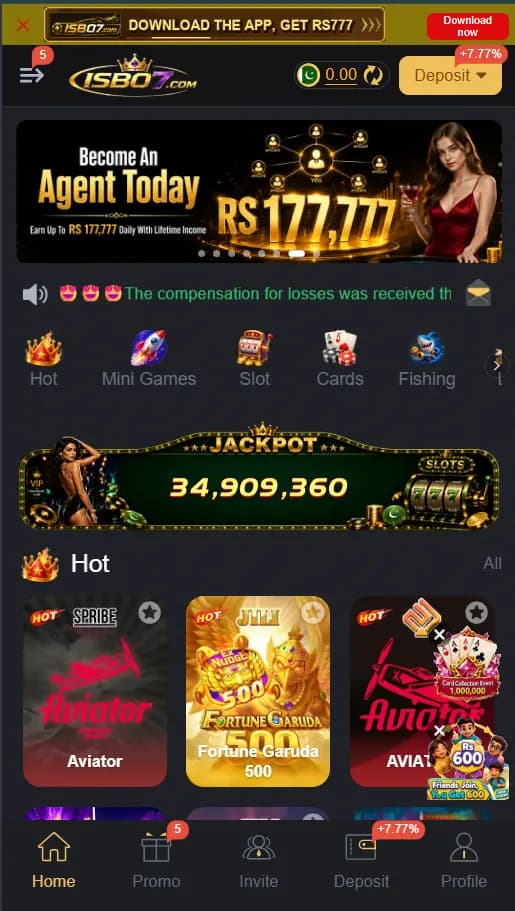
The ISB07 home screen places the brand, balance, and Deposit control across the top. A banner and announcement area sit above category shortcuts and the main tile grid. Home, Promo, Invite, Deposit, and Profile remain in the lower navigation. The registration panel accepts a phone number, email, or profile name and provides a password field, user-agreement confirmation, Customer Service, Demo, and optional Google binding. A separate activity screen groups Event, Mission, VIP, Rebate, Unclaimed, and History. Together, these screens make the ISB07 guide useful for download, account setup, login, promotion navigation, and routine troubleshooting rather than repeating a generic app description.
What the ISB07 Screens Show
The ISB07 home screen is designed around a portrait phone. The upper row contains a side menu, the ISB07 identity, account balance, refresh control, and a gold Deposit button. Promotional information appears below, followed by category shortcuts and a tile grid. This arrangement keeps the account controls visible while leaving most of the screen available for browsing.
The bottom row provides Home, Promo, Invite, Deposit, and Profile. Home returns to the catalogue, Promo opens current activities, Invite contains the app's sharing area, Deposit opens the account funding screen, and Profile leads to personal controls. Notification badges may appear beside menu items when the current account has something new to view.
Related resources: Browse recently added Android game guides
ISB07 Game APK Download or Browser Access
Use the main button on this page to open the saved ISB07 destination. The current mobile page provides Download now in the upper area, together with Login and Register controls. Choose Download now when you want the Android package. Users who prefer to open the platform in the browser can use the web interface presented by the same destination.
The Android package version, file size, and device requirement can change when ISB07 replaces its build. Confirm the values displayed on the current destination instead of relying on conflicting figures published elsewhere. Keep the browser open until the transfer completes, then find the package in the browser download list or the phone's Downloads folder.
Confirm the ISB07 identity first
The current destination uses the ISB07 name with black and gold branding. Compare it with the logo and screens shown here before continuing. If a future page displays an unrelated identity or an unexpected download name, return to this guide and reopen the saved destination.
Install the completed Android package
Open the completed APK from Chrome downloads or the Android file manager. If Android requests permission to install from that source, open the named settings panel, allow the browser or file manager you are using, return to the package, and finish installation. The permission can be disabled again afterward.
Related resources: Compare the latest Android APK guides · Android installation settings help
ISB07 Registration with Phone, Email or Profile
The approved registration screen shows one account field that accepts a phone number, email address, or profile name. Open Register at the top of the panel and choose the identifier you can continue using later. Enter it carefully, then create a password in the second field. The form also displays a confirmation that the user has read the current agreement.
Customer Service and Demo appear beneath the Register button. The account panel also provides optional Google binding below the main form. That connection is separate from the phone, email, or profile registration route, so read the permission screen before linking another account.
Choose an account identifier you can keep
A current phone number or email address is easier to reuse when returning to the account. If ISB07 accepts a profile name, record its exact spelling. Use a password that is different from passwords used for email, banking, or social accounts.
Complete the displayed registration form
Review the identifier and password, read the agreement linked by the form, and use Register once the entries are correct. If the page asks for an additional verification step, complete it through the current ISB07 screen. Keep any verification code private and enter it only in the account form.
Related resources: Compare the LG777 phone registration guide
ISB07 Login and Returning Account Access
Existing users can switch from Register to Login at the top of the account panel. Enter the same phone number, email, or profile name used when the account was created, then provide the matching password or any verification requested by the current screen. Small differences in number format or profile spelling can prevent access even when the password is correct.
If the account does not open, first recheck the selected tab, identifier, password, and internet connection. Avoid creating a second profile only because one attempt failed. Use Customer Service from the visible account panel when the original identifier is unavailable or the problem depends on an existing account record.
Recheck the original registration details
Use the same identifier type chosen during registration. A phone account should use the original number format, while an email or profile account needs the exact saved spelling. Remove accidental spaces and make sure the password field has not inserted an unwanted character.
Use Customer Service for account records
Customer Service appears directly beneath the registration and login controls. Use it for an account-specific access issue and describe the identifier type and error without sharing the password or a one-time code in a message.
Related resources: Follow the K888 login and account guide
Home, Balance and Main Navigation
After account access, Home is the central browsing area. The account balance and Deposit shortcut remain near the top, while category shortcuts and tiles fill the content area. Use the refresh control beside the balance when the current account view needs to update, then check account history if a value remains unchanged.
Promo and Profile separate activity browsing from account management. Invite opens the sharing tools shown by ISB07, and Deposit returns to the payment area. The visible navigation means users do not need to search inside the catalogue for these controls. Return to Home whenever a panel is finished.
Related resources: Learn how online play differs from an app download
ISB07 Events, Missions and Account Activities
The approved activity screen places Event, Mission, VIP, Rebate, and Unclaimed across the top. A side menu provides All, VIP, New users, Agency, History, refresh, and a code control. The captured banners show several promotional formats, but their dates, amounts, and requirements can change. Open an individual item to read its current details rather than treating the image as a permanent offer.
Use Unclaimed to look for completed items that still require an action, and History to review older activity when available. Mission is the more direct place for task-based items, while Event collects current campaigns. A notification badge shows where something new may be waiting, but the detailed panel determines what the account must do.
Related resources: Understand daily missions and reward panels
Deposit, Profile and Support Controls
ISB07 displays Deposit in the top account row and lower navigation. Open the signed-in payment panel and review the name, amount, available method, and instructions shown for the current session. The approved screens do not identify a specific wallet, minimum amount, processing time, or fee, so those details should be confirmed inside the live account rather than copied from another page.
Profile is the logical place for personal information and account settings, while Customer Service and Support handle current account questions. Keep any transaction reference until the activity appears in the account history. If JazzCash or Easypaisa is displayed inside ISB07, compare every account detail before continuing and follow the method shown for that session.
Related resources: Browse game guides with JazzCash information · Browse game guides with Easypaisa information
Common ISB07 Download and Login Fixes
If the ISB07 APK download stops, check available storage and connection quality, remove the incomplete package, and start again from the button on this page. When Android cannot open the file, confirm that the transfer completed and that the file is an APK. Preserve the account identifier before replacing an older installation.
For login problems, verify the identifier type, spelling, number format, password, and selected account tab. Close and reopen the app after checking the connection if Home remains blank. Use the visible Customer Service route for account history, balance, activity, or profile issues that cannot be resolved from the current screen.
Related resources: Read the P999 account recovery guide
Bottom line
What to know before opening ISB07 Game
ISB07 combines web access, an Android download route, flexible account identification, and clearly separated home and activity screens. The approved media makes its main controls recognizable before users open the current destination.
ISB07 Game highlights
- Download now, Login, and Register controls on the current destination
- Phone number, email, or profile registration field
- Password-based registration and returning login tab
- Home, Promo, Invite, Deposit, and Profile navigation
- Balance, Deposit, Customer Service, and Demo controls
- Event, Mission, VIP, Rebate, Unclaimed, and History sections
ISB07 Game FAQs
Where can I open the ISB07 Game APK page?
Use the Open ISB07 Game for Android button on this page to reach the saved ISB07 destination and select Download now.
Can ISB07 be opened without installing the app?
The current destination presents a working mobile web interface together with Download now, Login, and Register controls.
What can I use to register for ISB07?
The approved account screen accepts a phone number, email address, or profile name together with a password.
How do I return to an existing ISB07 account?
Choose Login and enter the same phone number, email, or profile identifier and password used during registration.
What activity sections appear in ISB07?
The reviewed screen shows Event, Mission, VIP, Rebate, Unclaimed, All, New users, History, and other activity controls.
Does ISB07 show JazzCash or Easypaisa?
The approved screens show Deposit controls but no named wallet, so check the current signed-in payment screen for available methods.